Installation and configuration on macOS
- First, you need to allow the launching of programs downloaded from identified developers. Open System Preferences, then Security & Privacy, and go to the General tab. Unlock the settings and select Anywhere (if available) or grant permission to the agent manually under Allow apps downloaded from.
- Disable the real-time protection of your antivirus application if one is installed.
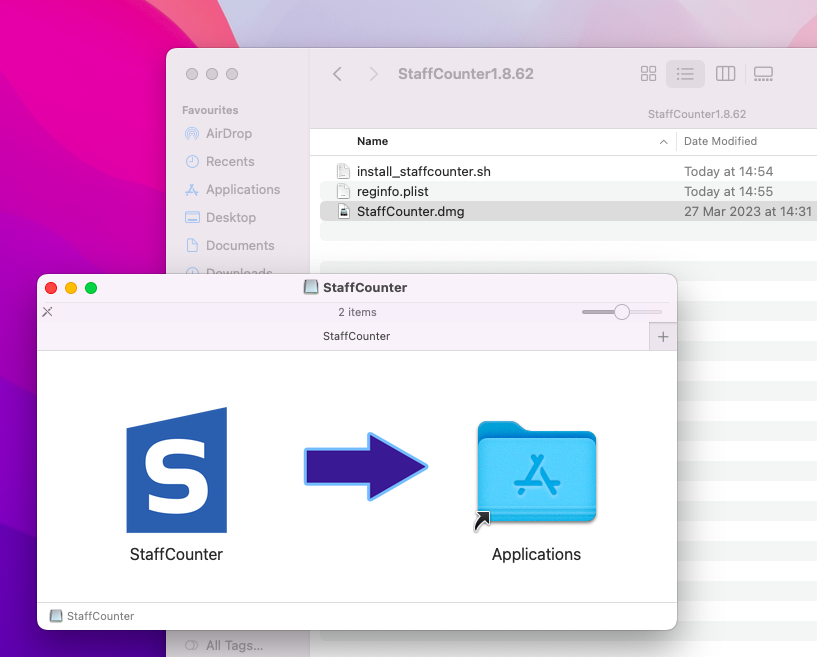
- Download the StaffCounter Agent on the Mac computer that the employee will use. Unzip the file into a new folder. Inside the archive, you will find the Staffcounter.dmg file. Double-click it and drag the StaffCounter icon to the Applications folder.

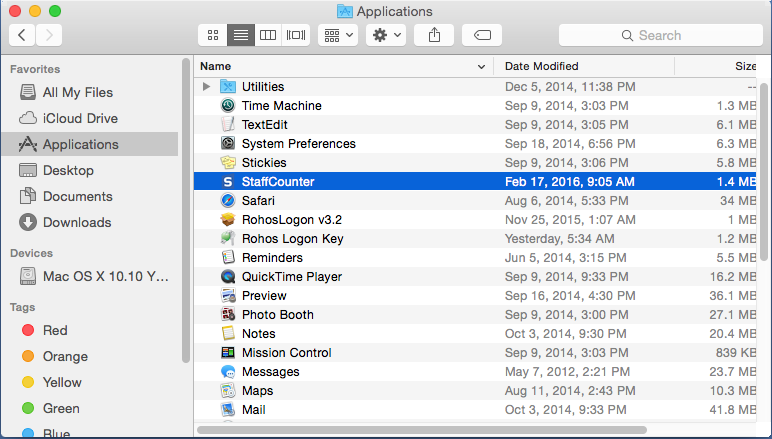
- Launch the agent by double-clicking its icon. Allow the application to access the user’s contacts. In the first field, enter the manager’s email address (the same address used for registration). In the second field, enter the user’s name. Click Register.
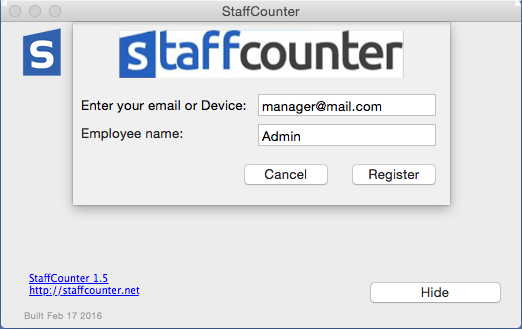
- Provide an administrator password if the system requires it.
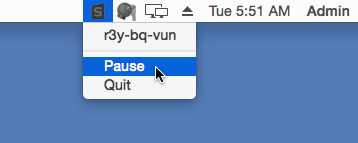
- To pause or stop monitoring, use the StaffCounter icon in the upper Menu Bar.

- To record keystrokes, enable this option on the Settings page on the server. The system may then show the following notification:
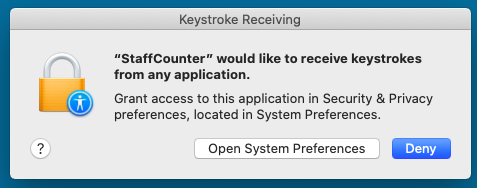

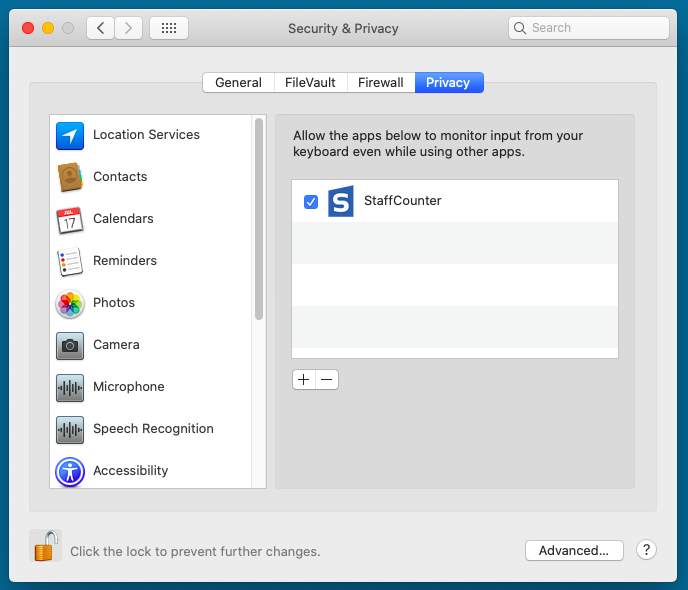
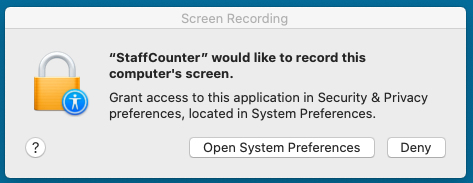
- Click Open System Preferences and unlock the settings. Check the box for the StaffCounter program under Security & Privacy > Accessibility > Privacy.
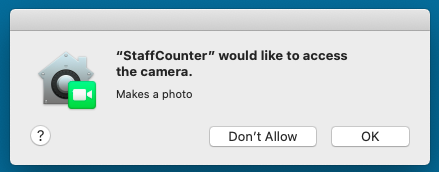
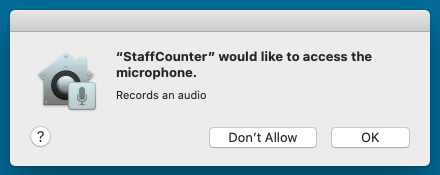
- Please restart the Mac and log in as the target user. The system will ask for permission for the StaffCounter application to access the camera, microphone, and screen. You should allow all of these.
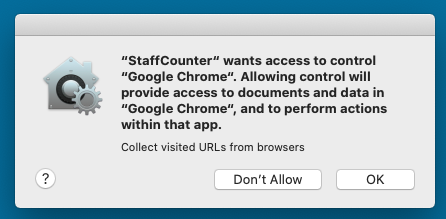
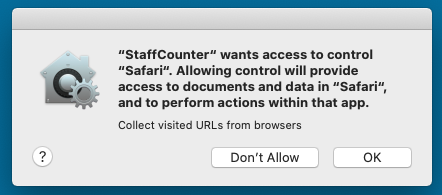
- Launch the Google Chrome and Safari web browsers. Allow the StaffCounter application to access your web history.
4. Launch your antivirus application and add the StaffCounter agent to the list of exclusions. Then, switch the real-time protection back on.