Connecting StaffCounter for macOS to a local server
1. Download and configure
- Download the StaffCounter agent for Mac and unzip the package.
- Open the
reginfo.plistfile and change the ‘server’ value to the IP address or URL of your StaffCounter local server host, then save the changes.
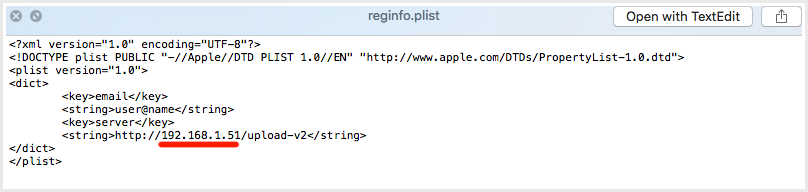
2. Set manager email or device ID
You can configure the agent to connect using either a manager’s email address or a specific device ID:
Case 1 (by email):
<key>email</key>
<string>manager1@mail.com</string>
Case 2 (by device ID):
<key>email</key>
<string>asd-qw-ert</string>
If you prefer to set these values later, simply remove these two strings from the file.
Important: Place the modified file into the following directory:
/Library/Application Support/StaffCounter/
3. Install the agent
- Launch the StaffCounter.dmg file. Move the StaffCounter agent icon to the Applications folder.
- Start the StaffCounter application. If you did not specify the manager’s email or device ID in the file earlier, enter them now.
4. Verify connection
Check your local server dashboard to ensure that data from the Mac device is being received successfully.