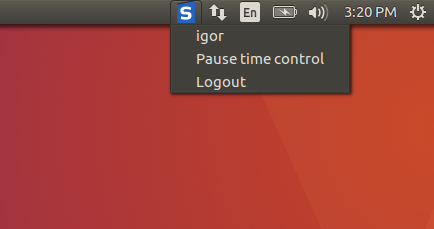
Lockscreen – Monitor employees in one account
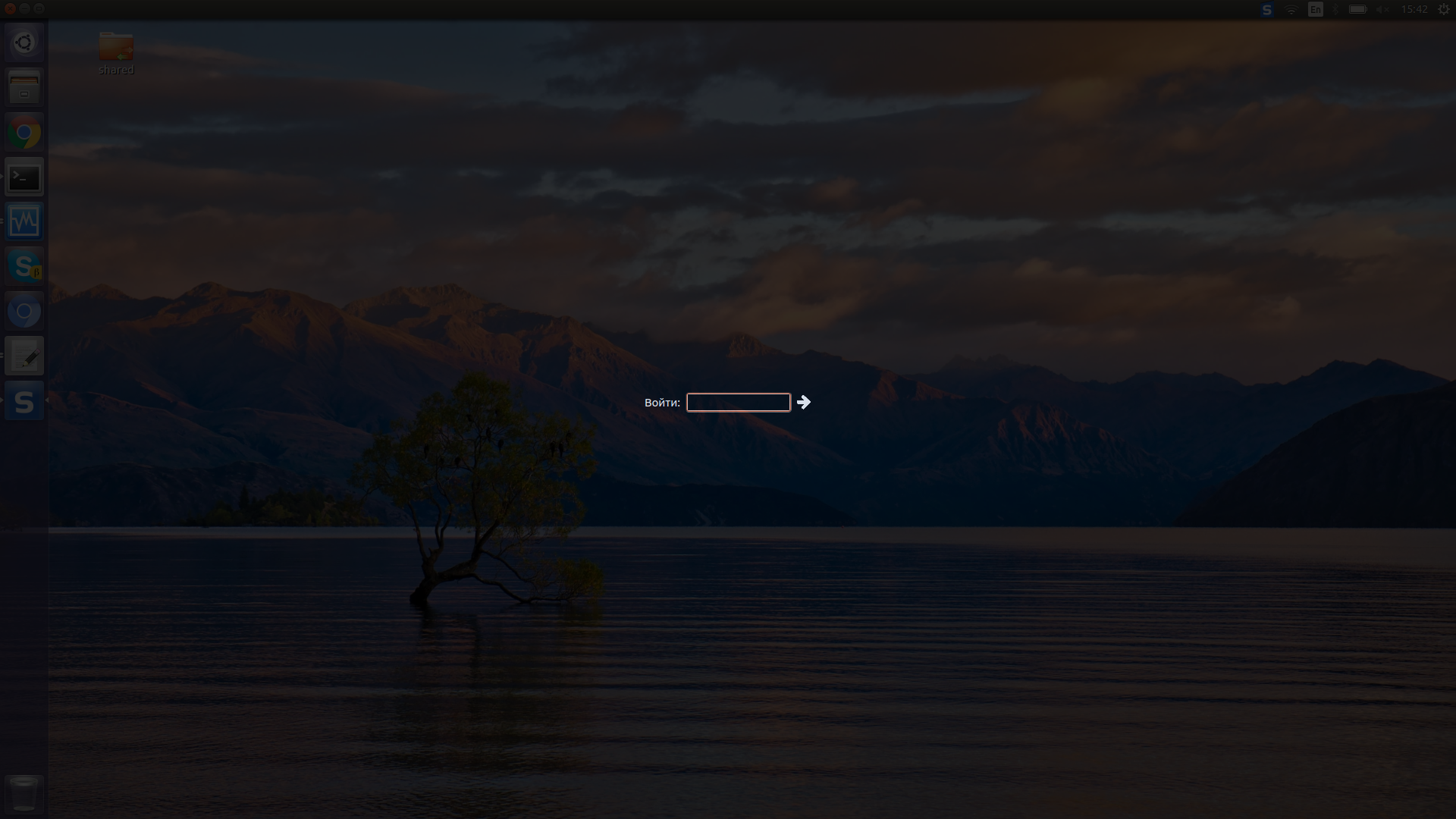
Our unique Lockscreen functionality allows you to automatically launch an authentication window (after 2 minutes of inactivity or after a forced logout) to log in to the StaffCounter system. This feature is useful when several employees work under one system profile and you need to track each employee’s working time separately.
Lockscreen dims the screen when StaffCounter starts and prevents any activity on the computer until authentication is completed. To log in, the employee only needs to enter their Device ID. The system will automatically retrieve the device from the server and immediately start monitoring. To create a predefined list of employees, use the Invite function.
While Lockscreen is active, no employee activity is monitored, and no logs are sent to the server.
To enable StaffCounter to work in Lockscreen mode, you must first create the required number of virtual devices on the data.staffcounter.net server.
Then, before installation, configure the settings file /staffcounter_install/files/staffcounter.conf as follows:
- lock=1
- idle_time_lock=120
After that, install the StaffCounter program as usual. When you start it, the Lockscreen window will appear immediately. On the desktop, in the system tray (clock area), use the StaffCounter icon → Exit to change the employee number.