Installing and configuring StaffCounter for Android
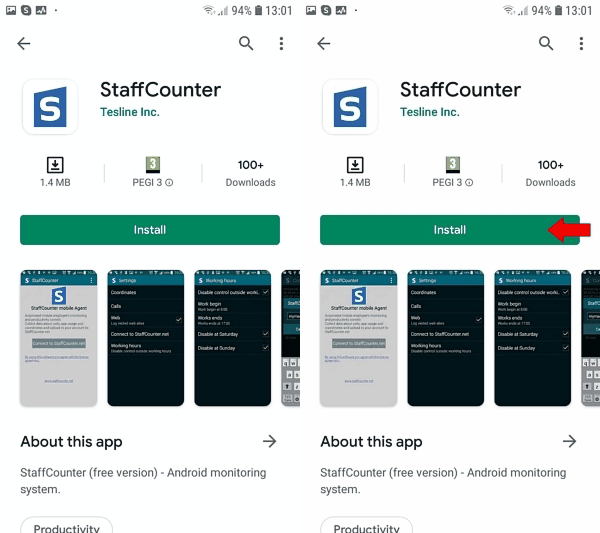
The basic version of StaffCounter for Android is available on the Google Play Store. You can install it from here>>.
 You can also download the StaffCounter app directly from our website. If you choose this method, you must enable app installation from unknown sources before proceeding (go to Settings > Security > Device administration and enable the “Unknown sources” option).
- Launch StaffCounter and grant all necessary permissions:
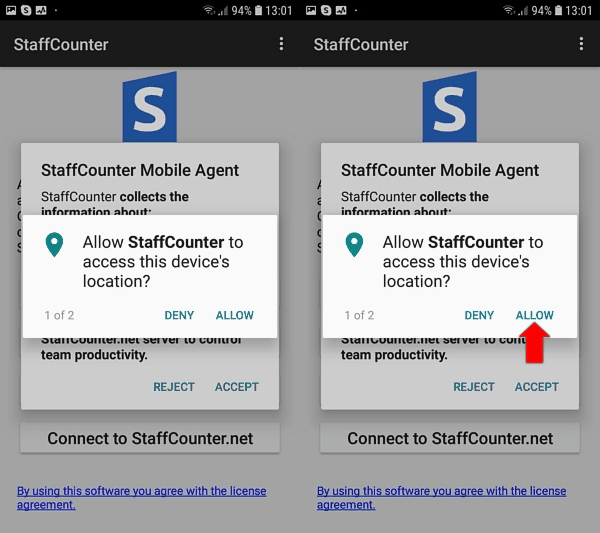

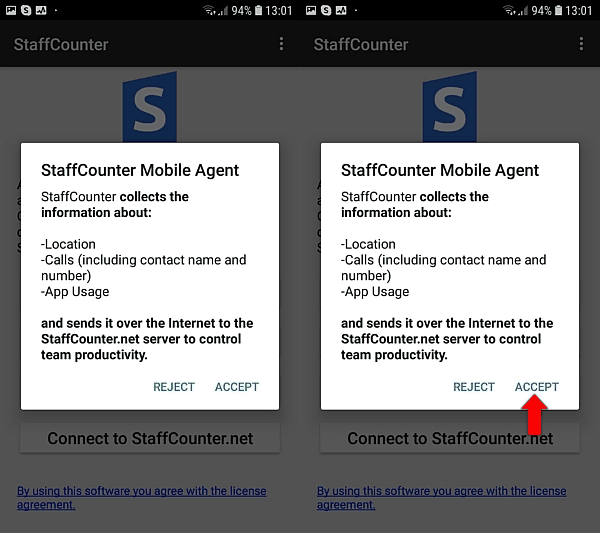
- Allow the StaffCounter application access to the device location, calls, and other data:
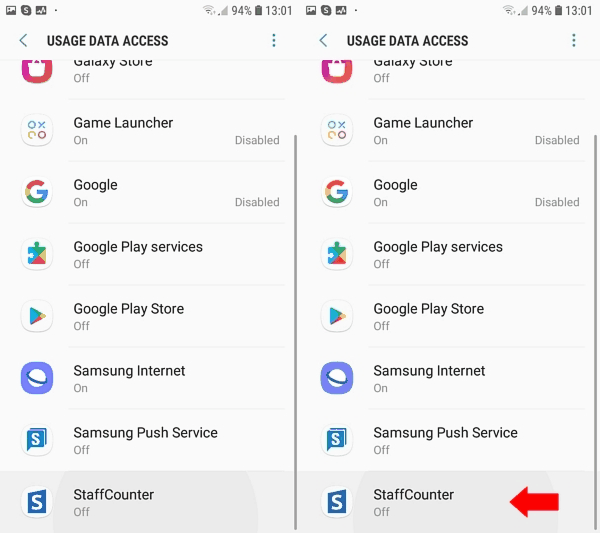
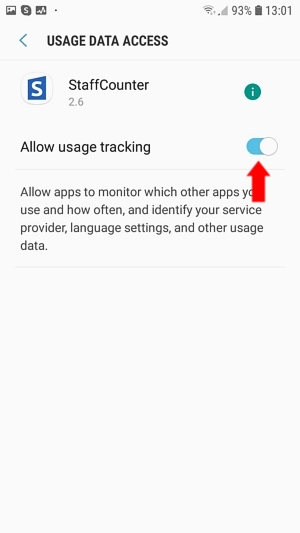
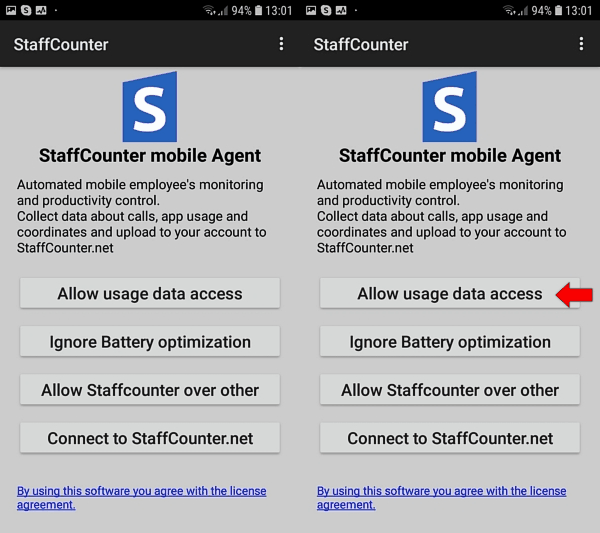
- Allow access to the application database for usage tracking:

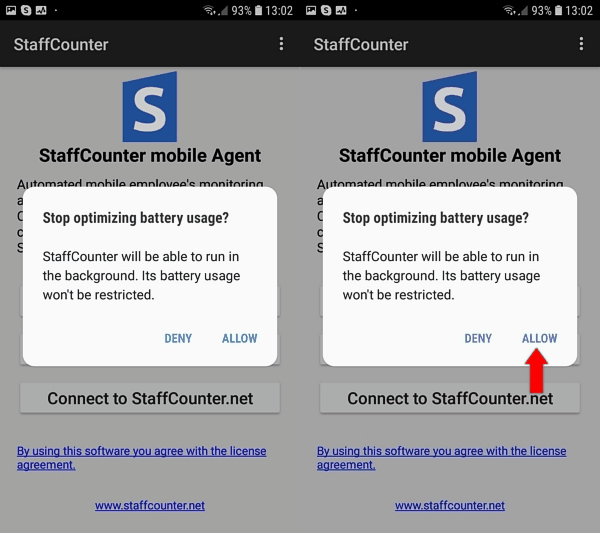
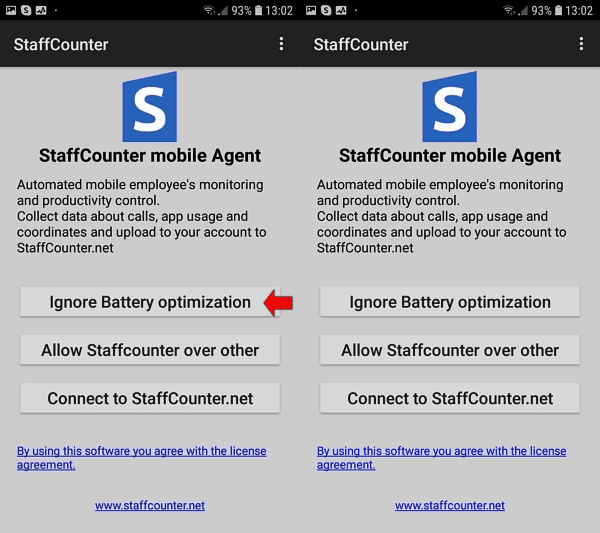
- Tap “Ignore battery optimization” to prevent the system from stopping StaffCounter to save power, then click Allow.
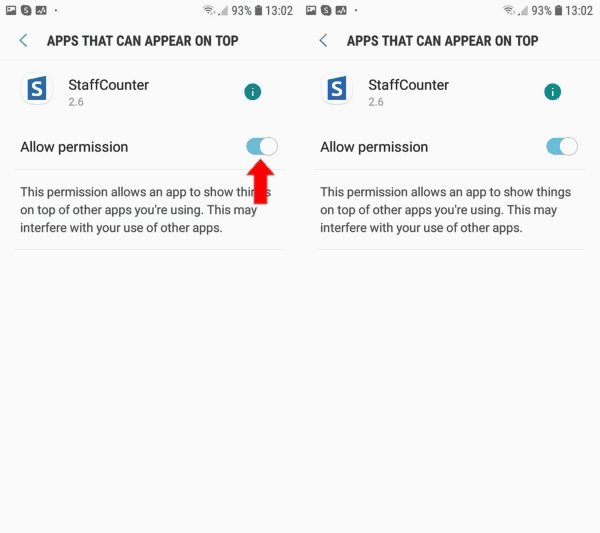
- Select “Allow StaffCounter over other apps” to ensure background stability.
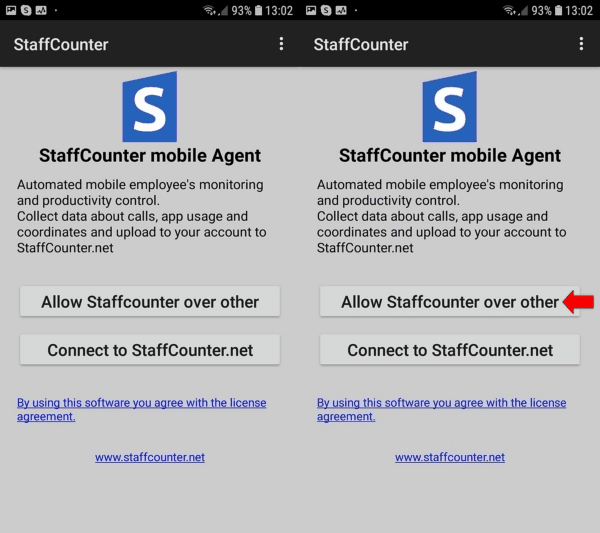
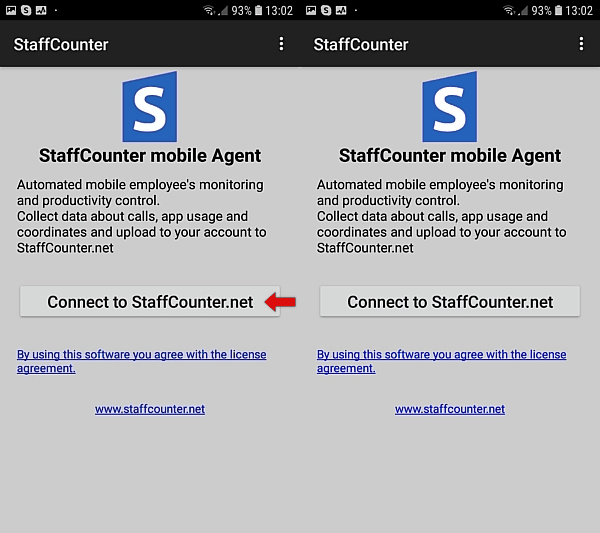
- In the main window of the application, click the Connect to StaffCounter.net button:
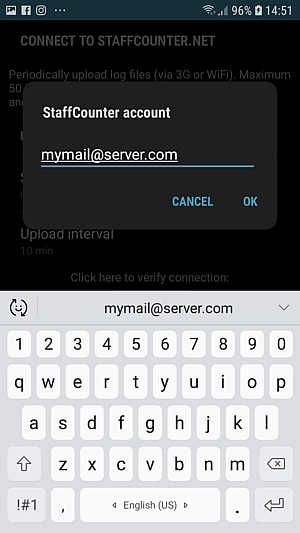
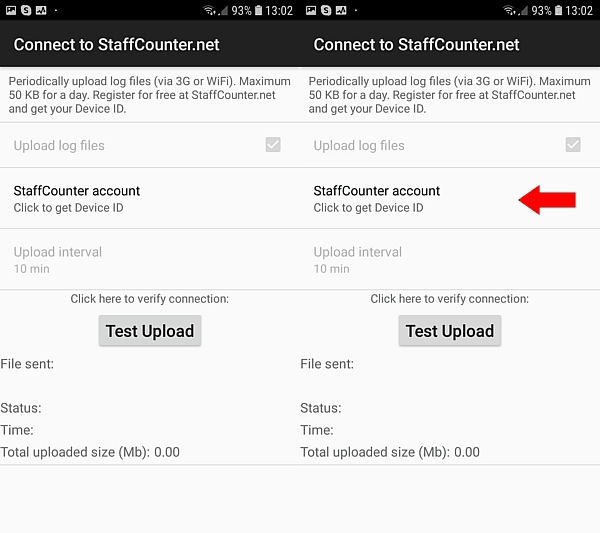
- Select your StaffCounter account and enter the email address used during registration.
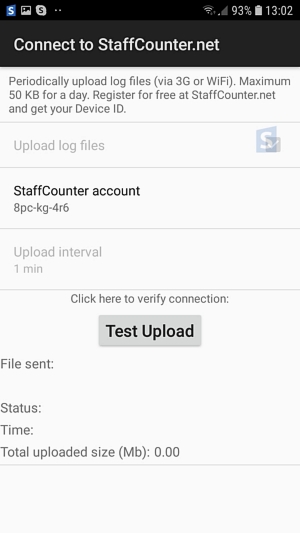
- Once connected, you will see the unique device ID assigned by the StaffCounter.net server.
- You can manually stop or start monitoring whenever necessary:
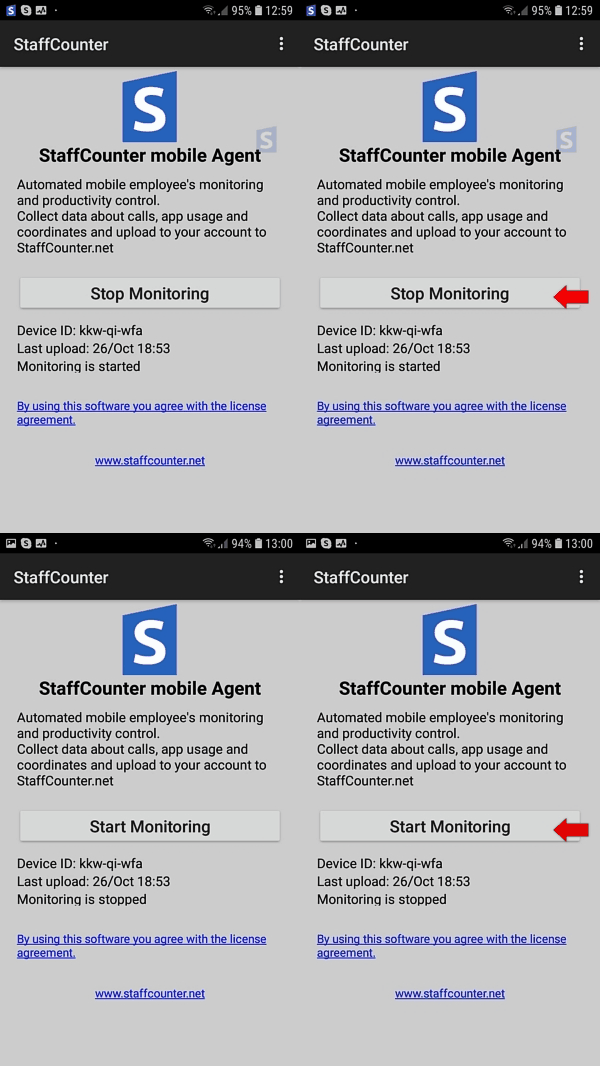
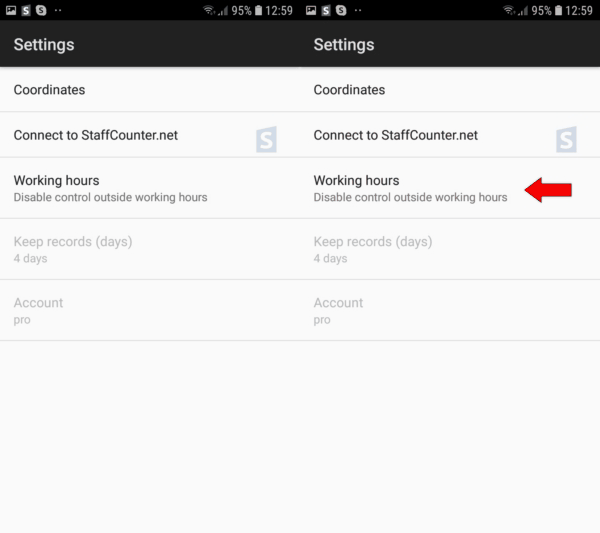
- Settings within the app are read-only, as they are managed remotely from the server:
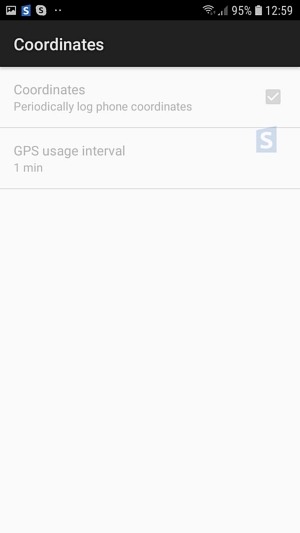
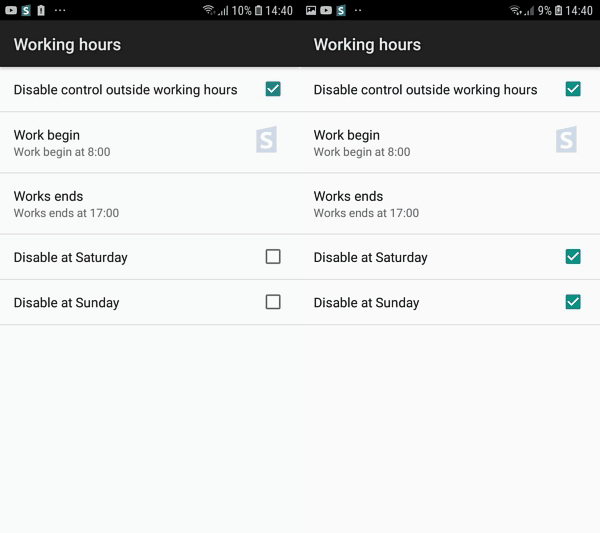
- You can, however, configure specific working hours directly within the app: